The deceptively simple question
Every security conversation I've had about Dynamics starts with someone insisting it can't be that hard to open a view and display some data. They're right that the request is simple. They're wrong about what answering it costs.
The model is built from three things: security roles (the bundles you assign to people), access (how widely a role reaches: your own records, your business unit, the whole organization), and privileges (the verbs: create, read, write, append, assign, share). Get those three straight and most of the platform's behavior stops being surprising.
Roles, business units, and inheritance
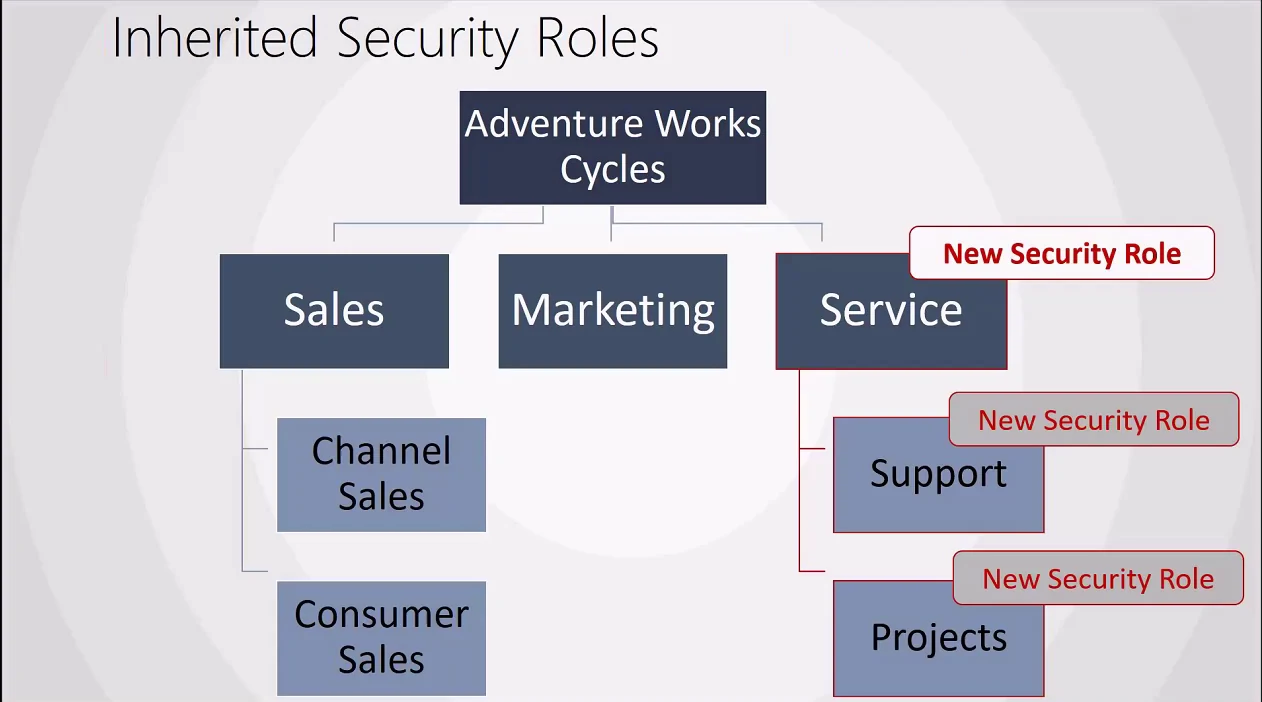
The crudest level of access is organization-wide: a role either reaches a record or it doesn't. That much people expect. What trips them up is that security roles are scoped to a business unit, and they inherit downward to child business units.
Here's a demo that catches almost everyone. I give a user the salesperson role and
grant it access to an entity, then have them refresh. The record still isn't there.
The role looked right. The catch: the user sat in the Contoso Canada
business unit, and I'd granted the privilege on Contoso USA. Roles live
on a business unit and flow to its children, never up and never sideways. Grant on the
parent and the whole subtree inherits; grant on a sibling and nobody downstream sees a
thing. To be precise: it's the role definition that's available throughout the
subtree. How far a given privilege actually reaches into child units' records is a
separate dial, the access level, and that's the next section.
When a user holds more than one role, the platform rolls them up: the effective permission is the union of every role, not the intersection. There is no "most restrictive wins" here. The most open grant wins. If you're hunting for a deny, the role system won't give you one. Denies live in plug-ins and custom logic, not in roles.
Organization-owned vs. user/team-owned
Every table picks one ownership model at creation, and you can't change it later. Organization-owned tables are all-or-nothing: you either see every row or none. Territory is the classic stock example, and it's deliberately rare.
The tables that carry the actual business (account, opportunity, case, lead) are user/team-owned. That model is a strict superset: it can emulate organization-owned behavior whenever you need it, plus everything below. So the rule of thumb is blunt: if you aren't certain which to pick, pick user/team-owned. The only reason to reach for organization-owned is a reference table where "see all or see nothing" is genuinely the whole requirement.
Access levels and what they cost in SQL
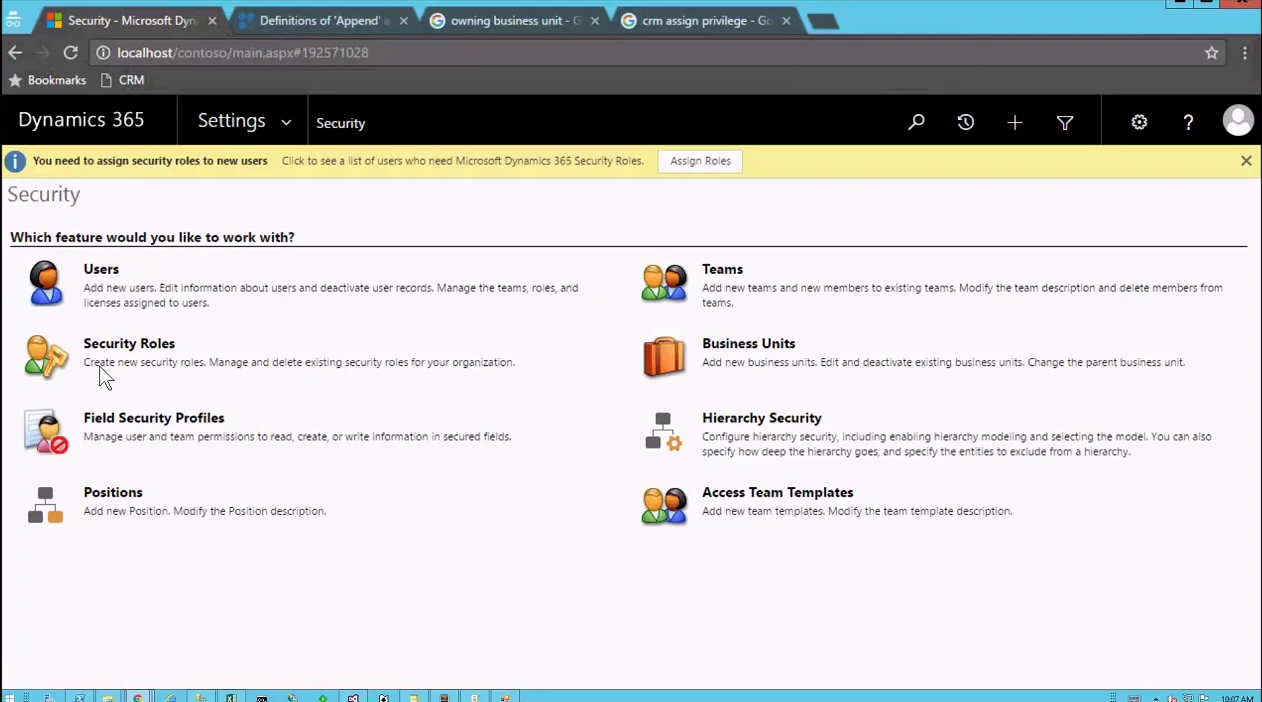
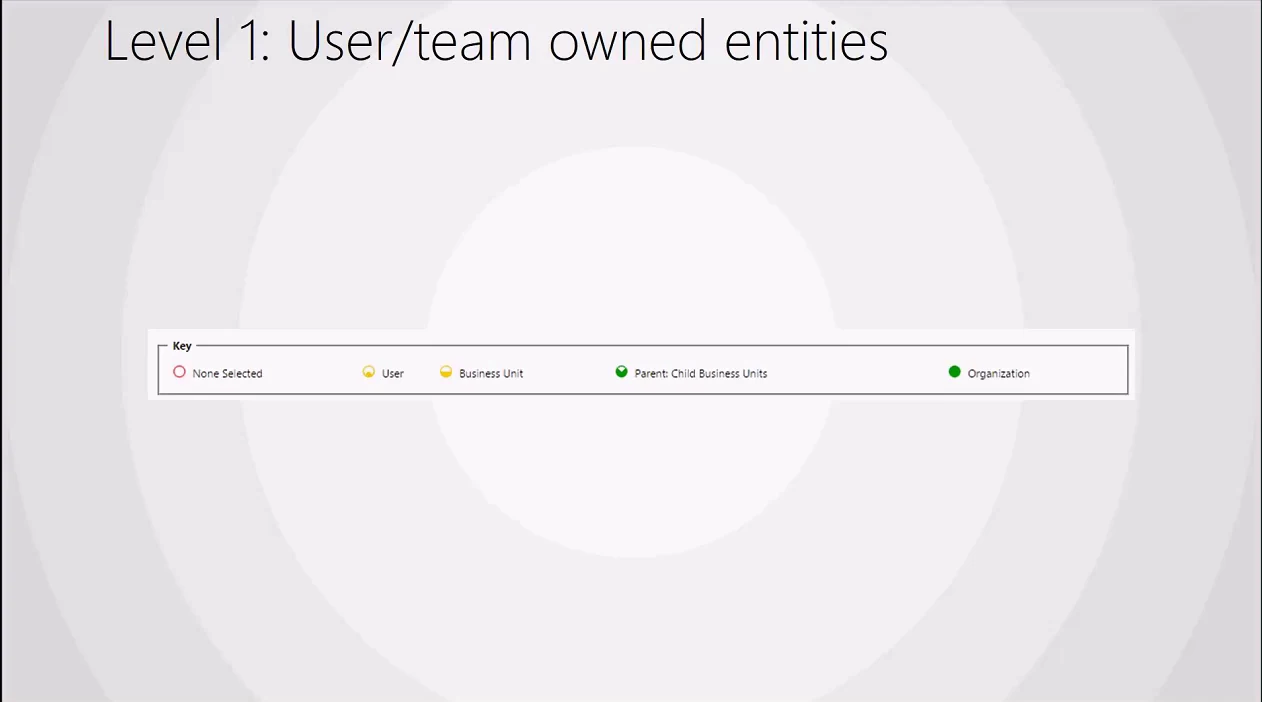
For user/team-owned tables, each privilege carries a depth. From narrowest to widest: none, user (your own records), business unit, parent: child business units, and organization. Those are the colored circles you click in the role editor.
Each depth maps to a recognizable shape of query. Organization access is essentially a
plain SELECT with no ownership filter. Business-unit access has the engine
read each row's OwningBusinessUnit and check it against a subquery of the
units you're allowed to see. The reason that's written as a subquery rather than a
single business-unit equality check is that the same query then handles the
parent: child case for free: widen someone's access and the subquery just
returns more units.
User-level access looks at the OwnerId. And here's the subtlety that
explains why it isn't just WHERE OwnerId = @me: "your own records" also
includes records owned by any team you belong to. Which is the natural
point to talk about teams.
The Append / Append To trap
Open the role editor and you'll find two privileges that look almost identical: Append and Append To. The difference is the single most common source of "why is this lookup locked?" tickets.
Setting a lookup needs two different privileges, one on each side of the
relationship. Pointing an opportunity at an account requires Append on
opportunity (you're appending the opportunity) and Append To on account
(…to the account). Grant only one side and the lookup stays read-only even though the
rest of the form is editable. I built a two-table demo to prove it: with append present
but append-to missing, the lookup is still locked; flip on append-to and it finally
opens. This is also why experienced admins just check both boxes everywhere, which is
exactly how that habit quietly over-grants. (Many-to-many associations are the exception: those want
Append on both tables.)
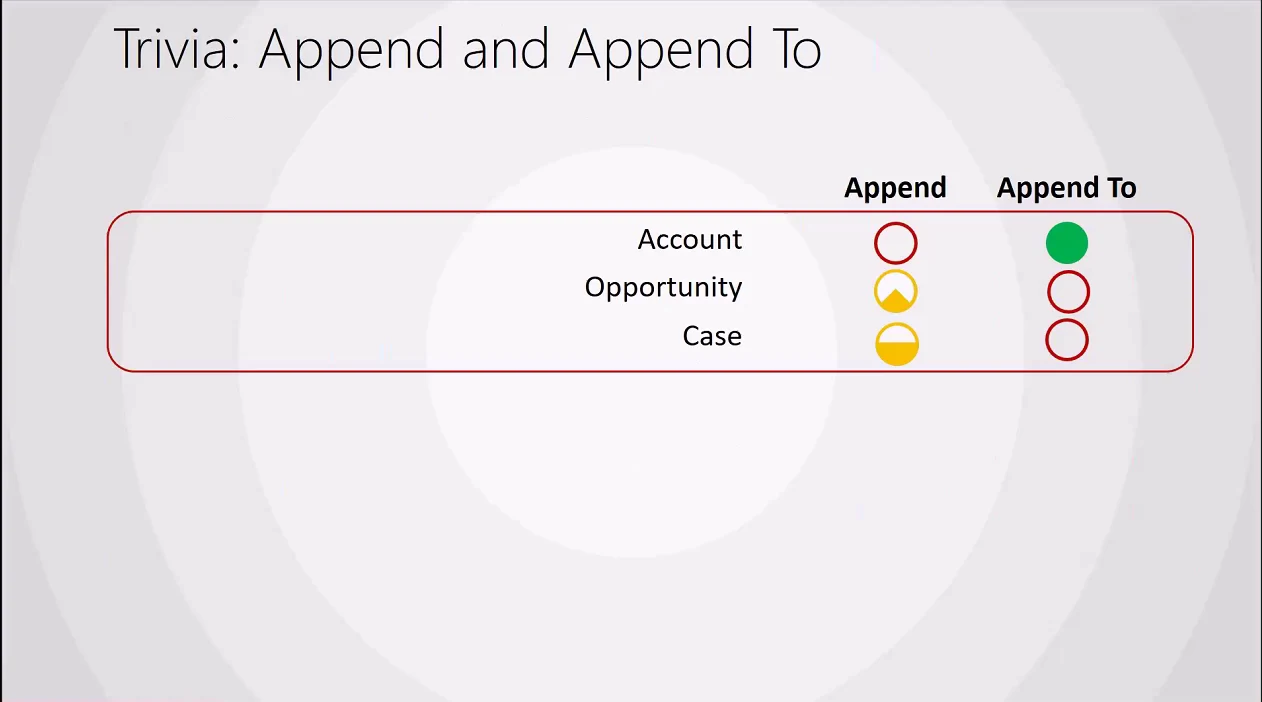
The same rule reaches further than people expect. A subgrid is a relationship viewed from the other side, so adding a row through a subgrid is really editing a lookup and triggers the same check. I'd expect the generic connection table (Dataverse's anything-to-anything relationship) to behave the same way, since a connection is just another relationship record, though that's exactly the kind of corner that's easy to leave untested.
What a reorg does to ownership
A record's OwningBusinessUnit is set from the business unit its owner
belongs to. So what happens during a reorg, when an admin moves a user from one
business unit to another?
Every record that user owns gets its owning business unit rewritten to the new one, in bulk, the moment you change that single lookup. It's a much heavier write than it looks, and all of that data effectively moves with the person. In practice this rarely bites well-designed deployments, because production records tend to be owned by teams, and teams stay put when individuals move. That's a strong argument for designing ownership around teams rather than individuals from day one. (Modern environments soften the original constraint, too: the "record ownership across business units" feature lets a record's owning business unit be set independently of its owner, which wasn't possible when this model was first taught.)
Owner teams vs. access teams
There are two kinds of team, and they solve different problems. Owner teams behave like a user: they can own records, have records assigned and shared to them, and carry security roles, and they belong to a business unit. They're the right tool when membership is fairly static.
Access teams are the less-understood option, and often the better one for collaboration. They share a single record with a set of people, and you specify the exact privileges each member gets. You enable access teams on the table, create an access team template that names the privileges (say, read and write), and drop a subgrid bound to the "Associated Record Team Members" view onto the form. Adding a user to that grid shares the record with them, and the grant is server-side and real, honored through the web API and any other path, not just the form you configured it on. (That template-driven, per-record team is the common case; Dataverse also supports user-created access teams that can be shared across many records.)
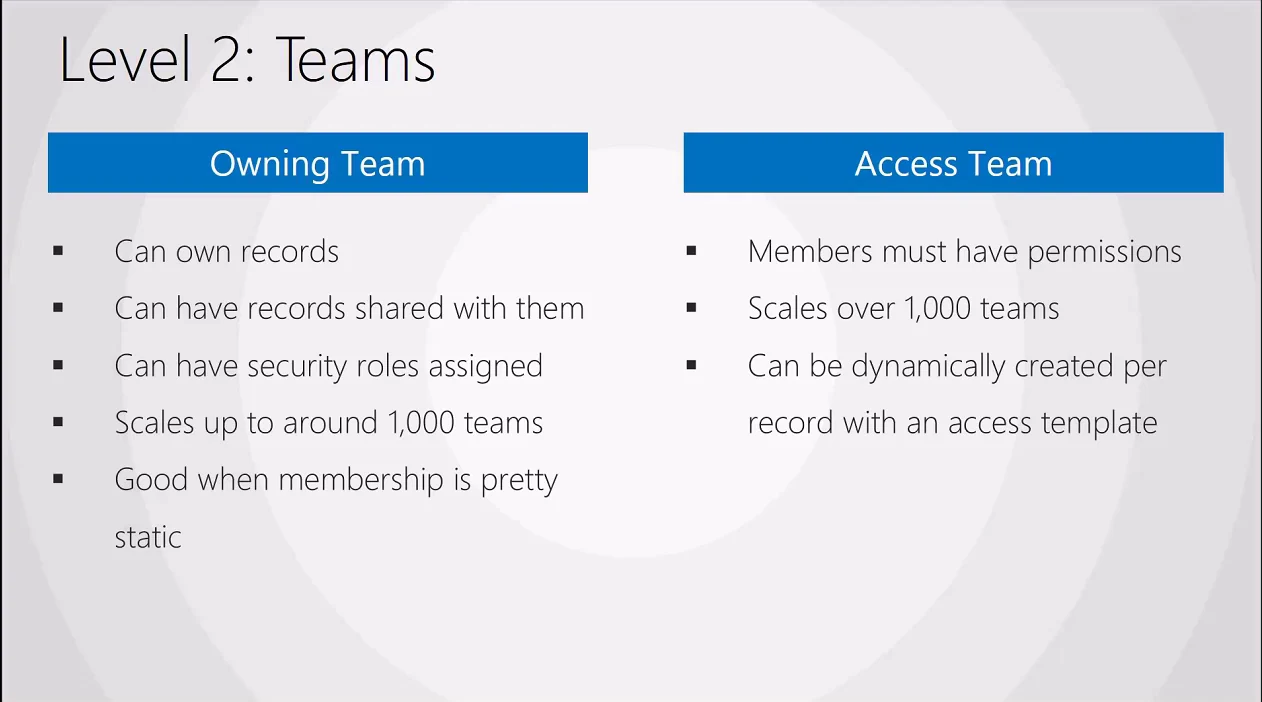
The documented pattern is two subgrids on the form, one read-only and one read/write, so a record's collaborators are explicit. Because access is rolled up, putting someone in the read/write grid still leaves them with read; the split is about clarity, not subtraction. The cost is screen real estate: you're spending part of every record's layout on the question of who can see it.
How privileges roll up across business units
Now mix it all together and the interesting case appears. Alan sits in the Service business unit with assign rights on his own records only, but read rights on every case. He can read Connie's, Ben's, and his own case. But try to assign, and only his own succeeds.
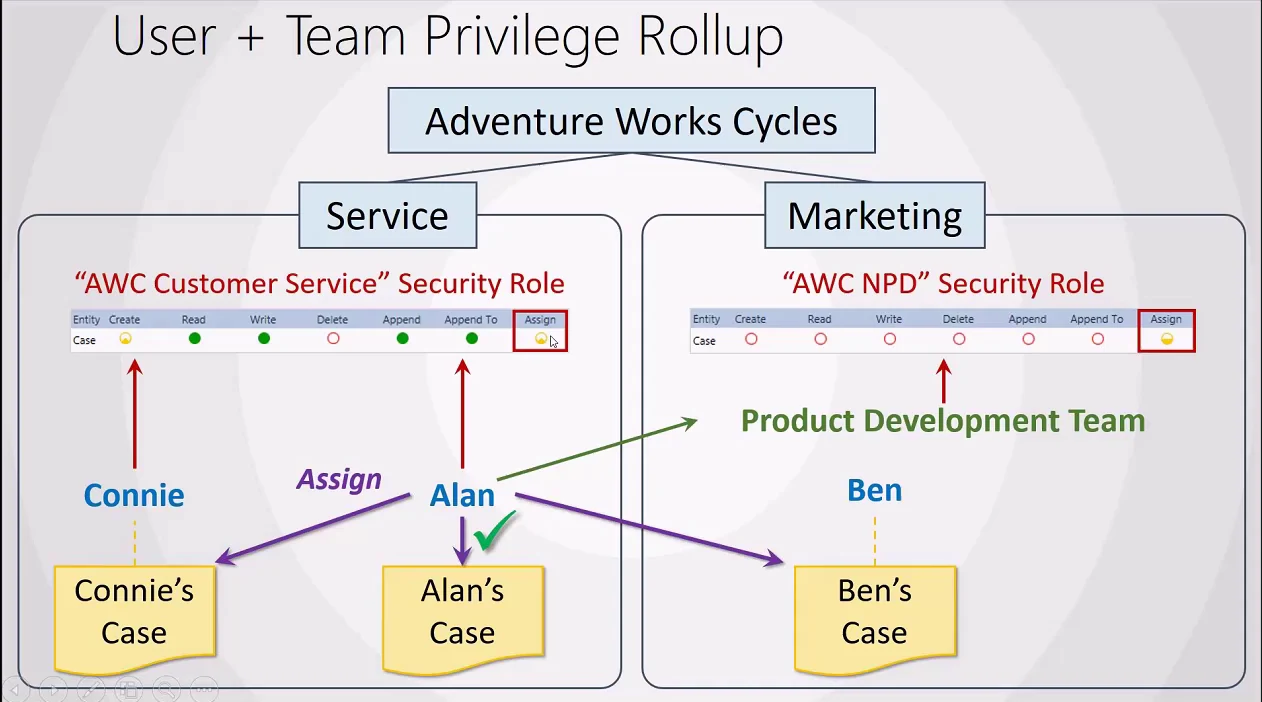
Then I enroll Alan in the Product Development team, which lives in Marketing and grants assign across that whole business unit. Suddenly Alan can assign Ben's case, because it's a Marketing record his new team reaches, while Connie's case, back in Service, stays off-limits. Permissions rolled up across business units through team membership, and again the union wins: the new grant adds reach, it never trims it.
Hierarchy security
Hierarchy security is an optional layer on top of everything above, and it comes in two flavors you have to choose between, and they don't run together.
Manager hierarchy gives a manager read/write access to their direct reports' records. The motivating case is simple: a rep goes on vacation mid-deal and the manager needs to close it without filing an admin ticket. Set a depth greater than one and skip-levels get read-only visibility further down. A VP of sales sees their managers' records read/write and the reps' read-only, and so on up to the CEO.
Position hierarchy ignores the org chart entirely. You define positions, and a user in a higher position gets access to the records of users in lower positions down that branch, regardless of who formally reports to whom. It's built for service, where a manager needs to see cases across reps who don't report to them. Two caveats worth tattooing somewhere: with manager hierarchy the manager must sit in the same business unit or a parent of it, and for either model to work at all, users need at least "read your own records." Miss that and the whole layer silently does nothing.
Why it gets slow
There's also field-level security (now branded column-level security): secured columns nobody reads except people you explicitly grant, with their own share-this-field flow layered on top of row access. Stack everything (access depth, team ownership, manual shares, hierarchy, secured fields) and watch what it does to a single read.
The execution plan for retrieving one or two columns from one table, with all of it switched on, touches roughly six tables, leans on a stack of indexes, and includes a table scan that I'd want to keep a close eye on at scale. That's the honest answer to "how hard can it be to show a row of data." Every feature in this brief is a join the database runs on your behalf, on every query, forever. The model is powerful because it's expressive, and that expressiveness isn't free.
Practitioner takeaways
Own with teams, not people. Team ownership survives reorgs and sidesteps the bulk owning-business-unit rewrite that follows moving a user.
Never edit out-of-the-box roles. Clone them. Built-in roles carry hidden privileges you can't reliably reconstruct if you break one.
Watch the leak paths. Plug-ins can run as impersonated users, calculated columns can surface data their consumers shouldn't see, and offline sync can pull down rows you'd rather keep server-side.
Treat sharing as a performance budget. Cascading parental relationships plus heavy manual sharing bloat the POA table. Reach for access teams and correct roles before you reach for the share button.
"Why can this person see this record?" is genuinely hard. There's no clean built-in answer: access can arrive via a role, a team, a share, or a hierarchy. The practical move is a sandbox that clones roles and users so you can reproduce what a given person actually sees.